THE SV MENU
Type /sv (or /soulverse). Everything a server owner does in Soulverse can be done from here, and almost everything also has a command if you'd rather type. /sv <player> jumps straight to someone's page.
What you see depends on your permissions. Anything you can't use is greyed out, with a note saying so.
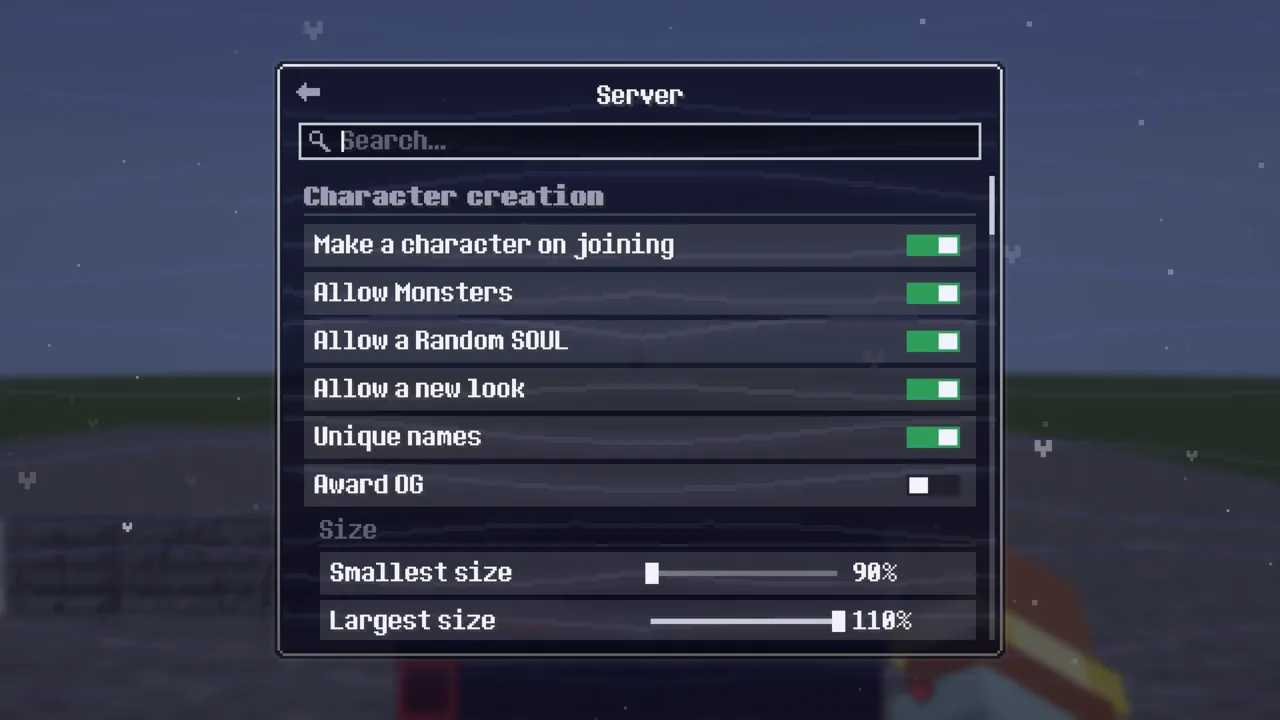
The tabs
| Tab | What's there |
|---|---|
| Players | Everyone who ever joined, online first. Click one for their page |
| Server | Every server rule, grouped by category, with a search. Settings Presets... is the first row, Mod Configs sits at the top right |
| SOULs | Every SOUL, each set to enabled, greyed out, hidden or disabled |
| Quirks | Every quirk under its SOUL, with a live preview, its on/off switch, its settings and Assign to Player |
| Trials | Every trial: switch each on or off, change step counts and rewards, reset it for everyone |
The search on the Server tab finds quirk settings too and takes you to the quirk on the Quirks tab.
SOUL modes
On the SOULs tab each SOUL has one of four modes:
| Mode | What happens |
|---|---|
| Enabled | Can be chosen as usual |
| Greyed out | Shown in character creation, but new players can't pick it. People who have it keep it |
| Hidden | Left out of character creation. People who have it keep it |
| Disabled | Gone. Everyone who has it is asked to choose another |
Handy if one SOUL turns out too strong on your server, or you want fewer to choose from.
A player's page
Pick someone on the Players tab. Their page has:
- their SOUL, chosen name, Minecraft username, size and lives, each changeable with the right permission
- their quirks, shown as icons, and Edit Quirks to give or take any of them
- Reset Quirk Waits, which clears every cooldown their quirks have (it asks first)
- Trials, with their progress in each and Grant / Reset / Reveal
- inventory and ender chest, spectate, teleports
- kick, ban, temp-ban, chat and voice mutes, deafen, voice ban and volume
- their log
Changes here apply at once and are saved to their file.
The inventory view
Opening someone's inventory shows two panels side by side: yours on the left, theirs on the right. Move things across with a click, or shift-click to send them to the other side. There's a trash slot on your side. With Strapped, both sides get tabs for their Gear, backpack, quiver and Tool Bundle.
Without soulverse.players.inventory.edit it opens read-only: you can see everything but can't move anything.
It works for offline players too. Their saved inventory is loaded, and whatever you change is written straight back. If they log in while you're looking, you switch to their live inventory.
Spectating
Spectate puts your camera behind the player. Your own character stays where it was as a stand-in with your name over it, so nobody sees you vanish, and your real body comes along unseen and unhurt. Press E while watching to open their inventory. It ends when you stop, or when they leave or die.
Logs
Log on a player's page opens their log, newest at the bottom (the menu shows the last 3000 lines; the file itself keeps everything). It has:
- kills of players, named mobs and pets, with who named or tamed them
- deaths, with the damage they took in the last 30 seconds
- advancements and dimension changes
- private messages sent and received, and ghost chat
- SOUL, name and username changes, with which admin made them
- lives lost and gained
- chests and other containers opened that someone else placed, and what was taken or put in (this goes in both players' logs)
Same thing from chat: /sv players log <player>.
The "Restart required" line
Some changes only take effect after a restart, like switching Additional Souls or some other mods' config files. While one is waiting, an orange line shows at the top of every page of the menu. Hover it to see why. If you put the setting back the way it was, the line goes away by itself.
Reload
/sv reload (or the menu's Reload) reads the settings and every player file again. Use it after editing files by hand.